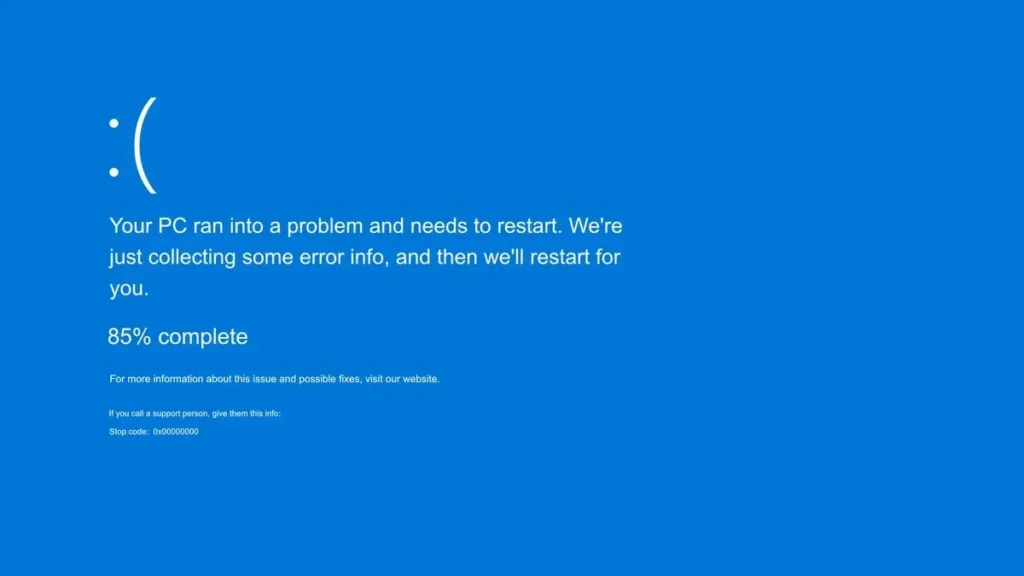
Microsoft has published a step-by-step guide to fix the blue screen issue caused by CrowdStrike.
Microsoft is working with CrowdStrike to resolve the software update issue that is disrupting business in many industries around the world. Although Microsoft says that the basic problem has been resolved, problems in some services seem to continue for a while.
The company has published a guiding guide for Windows 10 & 11 users who receive blue screen errors with error codes 0x50 or 0x7E.
CrowdStrike blue screen error solution steps for Windows 10 & 11
Turn off the computer by pressing and holding the power button for 10 seconds, then turn it on.
On the Windows login screen, hold down the Shift key and select Power – Restart.
On the Choose an option screen, select Troubleshoot.
On the troubleshooting screen, select Advanced options – Startup Settings – Enable safe mode.
Restart the computer.
After entering Safe Mode, right-click Start, click Run and type “cod”.
If your system drive is different than C:\, type C: and press Enter.
Type CD C:\Windows\System32\drivers\CrowdStrike.
Find the file matching “C-00000291.sys” by entering the dir C-00000291.sys command and press Enter.
Permanently delete the file by typing the del C-00000291.sys command and pressing Enter. Manually search for “C-00000291.sys”, if found, delete it.
Restart the computer.
There are two options for those stuck on the Windows recovery screen; Go into safe mode and delete the C-00000291*.sys file by following the steps above. The second method is to use system restore.